Define the Work Order.
Create the job in the Company Portal with its work details, priority, and due date. Give dispatchers a shared place to manage upcoming work.
Create and assign Work Orders in the Company Portal. Dispatch them to Android phones, follow progress from the office, and keep verifiable evidence in storage your company controls.
Get the Android appVerify an evidence packagePhotos & video · Front & rear cameras
Photo stamps: date, time, GPS coordinates, and a geocoded address. Correct the address manually during photo capture if geocoding fails or returns the wrong address. Stamping follows your settings and company policy.
Date/time and address-stamped photos, video, and package verification.
02 / OperationsWork Orders, issues, reminders, and assets.
03 / StorageEvidence goes to storage you control.
04 / AdministrationPeople, devices, policy, and reporting.
Plan, dispatch, and review from your browser. Give the field team a clear assignment before they pick up the phone.
Create Work Orders in your browser, assign a company phone, and track progress. Filter overdue, due-today, unassigned, and returned work so dispatchers can act on exceptions.
Explore Work Orders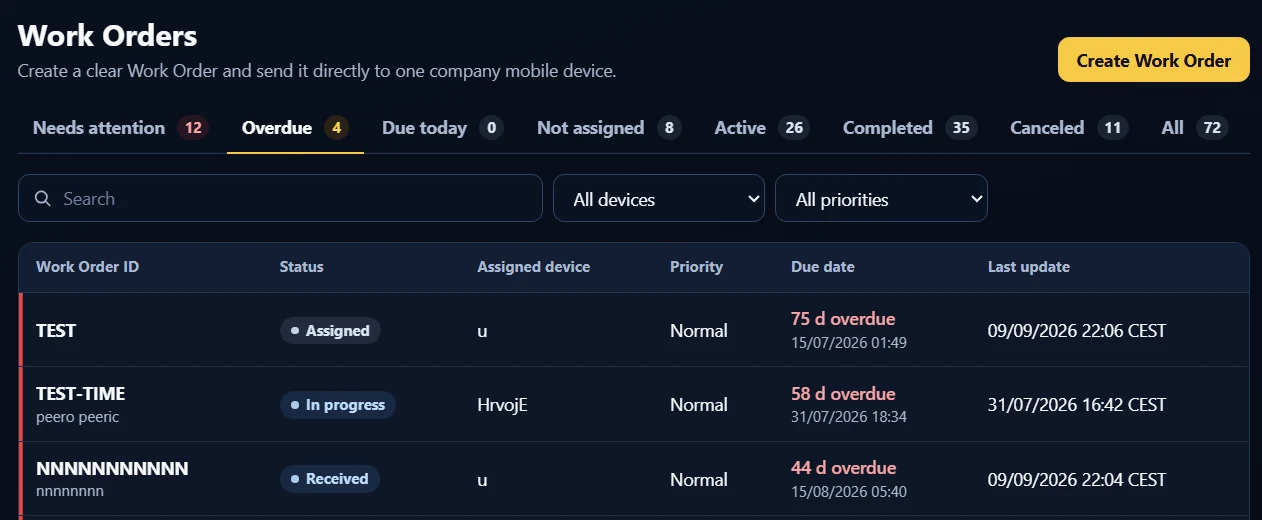
Review equipment availability, custody, and condition before dispatch. Keep technician responsibility visible and separate available tools from maintenance or out-of-service equipment.
Explore field operations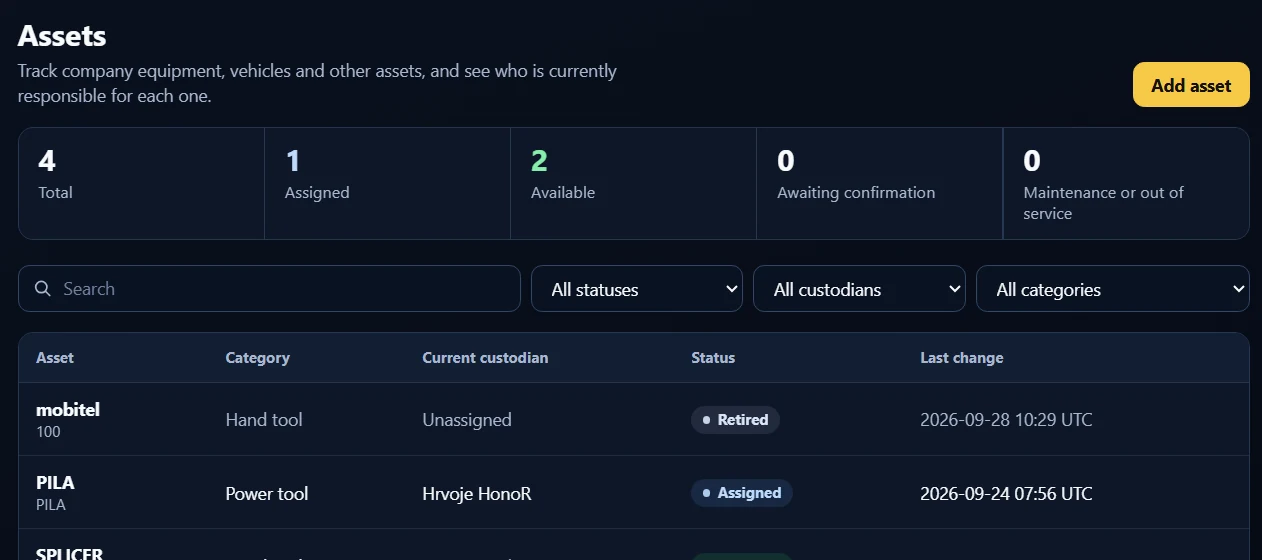
Activate company phones, see used and available seats, and replace or remove devices through the portal. Keep company policy consistent across the deployment.
Explore Company Seats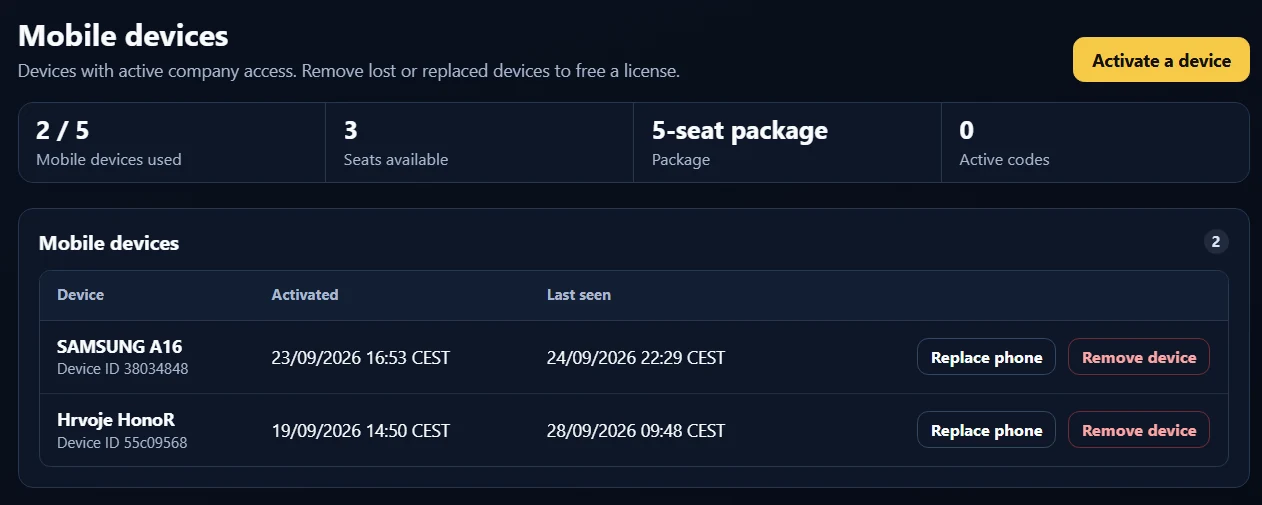
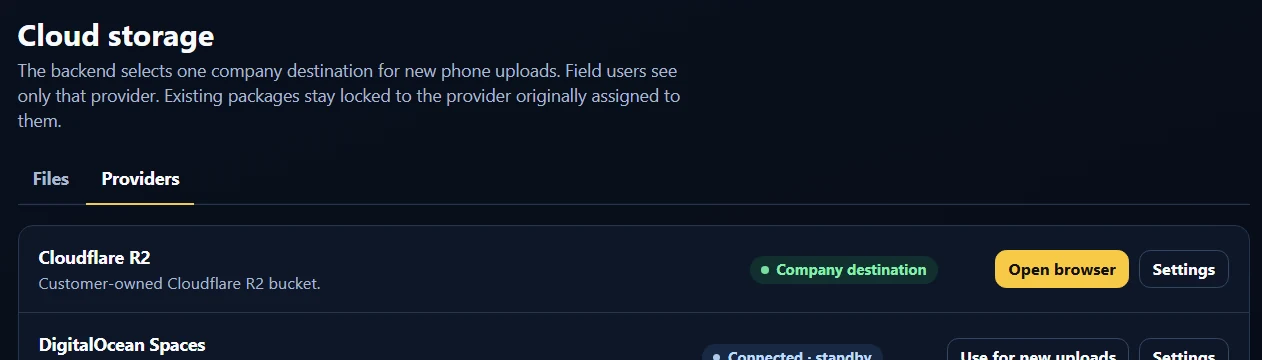
Browse your company evidence destination from the portal. Use Cloudflare R2, DigitalOcean Spaces, or a compatible S3 endpoint, including self-hosted infrastructure.
Explore customer-owned storage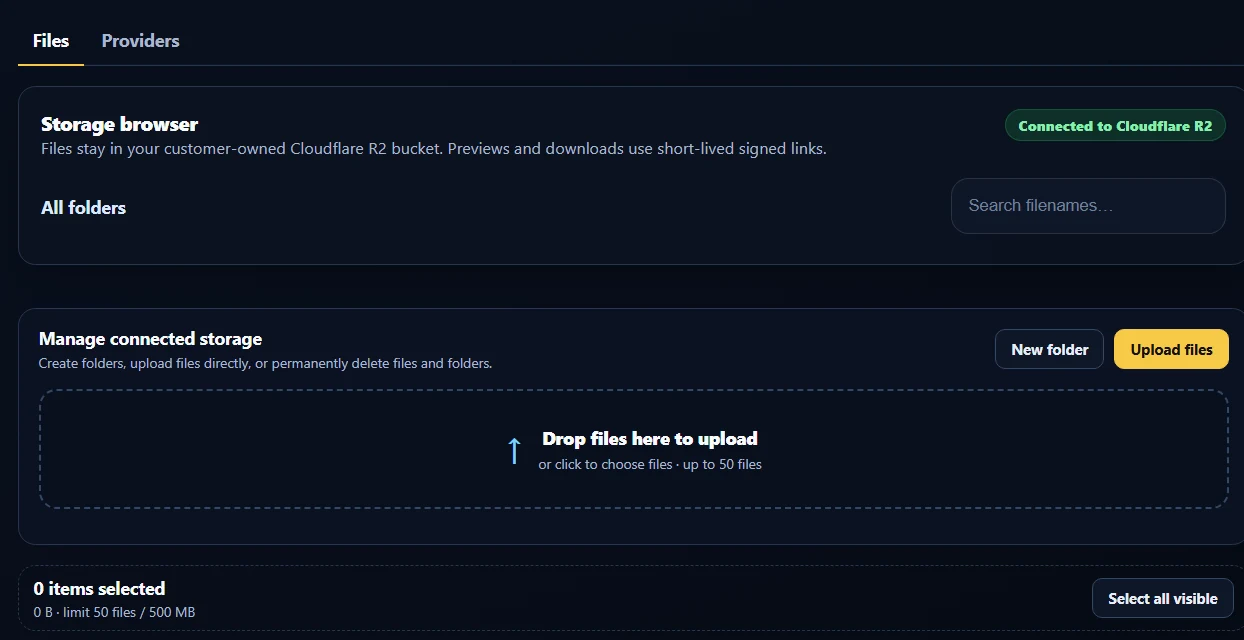
Create the job in the Company Portal with its work details, priority, and due date. Give dispatchers a shared place to manage upcoming work.
Assign an activated device. A push notification alerts the technician. Include instructions, a reference picture, and the customer’s address and phone number so the field team knows what to do and where to go.
Reassign work between phones or receive it back with a note such as “Rescheduled for Friday.” Technicians record what they did in the field; optional upload emails keep the office informed.
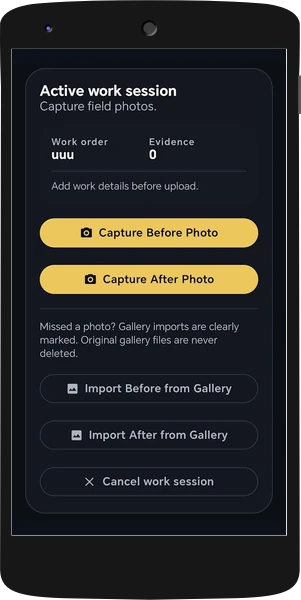
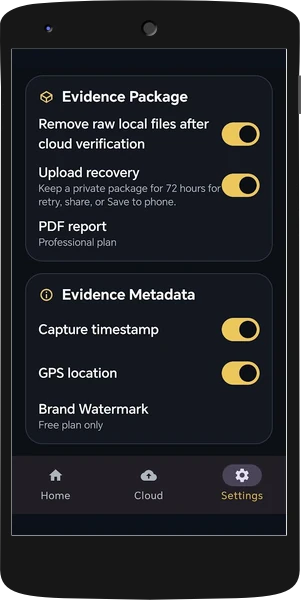
Capture photos and video using either the front or rear camera. Stamp photos with the date and time, GPS coordinates, and a geocoded street address. If the address lookup fails or returns an incorrect address, edit it manually while taking the picture. Add before-and-after evidence and a description of the work performed. The Work Order PDF brings together a work summary, photo thumbnails, capture times, and clickable Google Maps coordinates.
Capture the before photos, close the app completely, and return for the after photos once the work is done. Your persistent session keeps both parts in the same job record.
Understand evidence & verificationTake the before photos, completely close the app, and return after the work. Reopen the same persistent Work Order session, capture the after photos, add your notes, and upload the complete package.
If the connection drops, uploading resumes when the phone comes back online. Interrupted connectivity does not mean starting the evidence workflow again.
Photos stay within the Field Bundle workflow, not in the technician’s personal gallery. If an upload fails, share the evidence package as a ZIP through Android’s native share menu.
Upload directly to Cloudflare R2, DigitalOcean Spaces, or a compatible S3 endpoint—including infrastructure you host yourself.
Field Bundle does not need to be the permanent repository for your media.
Record field issues and schedule service reminders months ahead, with an optional company email alert before the event.
Explore field operationsSee which phone holds a tool. Send its holder a location-sharing request by push notification and view the shared location on a map.
Explore asset managementManage phones, seats, roles, company policy, branding, and notifications.
Explore company controlsActivate Android phones, manage available seats, and apply a consistent capture policy across your company. Give office users access appropriate to their role.
Two-factor authentication, login throttling, server-side permissions, and company isolation support company access.
Use location for evidence and requested tool-location sharing. Field Bundle does not monitor workers through background GPS.
Begin with individual Android access or plan a Company Seats rollout with storage and onboarding support.
Review what was done, photo thumbnails, when evidence was captured, and where. Click the photo or video coordinates to open the recorded location in Google Maps.
See a list of phones and how many Work Orders each uploaded. Keep the reporting cadence aligned with the way your office reviews field activity.
Choose email notifications for Work Order uploads. With storage connected, browse Work Order folders in the portal and download them as ZIP files.
Check that the photos, videos and report in a Work Order package have not been changed since the technician’s phone signed them. Open the ZIP or folder in your browser. No media is uploaded.
Tell us about your team, your Work Orders, and where your evidence needs to live.