
Date and time on the photo.
Stamp captured photos with the date and time. Include GPS coordinates and a geocoded address according to your capture settings and company policy.
Capture the work, preserve the package, and check whether the supplied files match its signed records—directly in your browser.
Date, time, coordinates, and an address give a photo the context a reviewer needs.
Stamp captured photos with the date and time. Include GPS coordinates and a geocoded address according to your capture settings and company policy.
Geocoding turns the capture location into an address. If the lookup fails or shows the wrong address, edit the address manually while taking the picture.
Capture still photos or record video using either the front or rear camera. Choose the format that best documents the work.
Capture before-and-after photos and video with either the front or rear camera. Stamp photos with the date, time, GPS coordinates, and the geocoded address. Correct an incorrect or unavailable address manually during photo capture, and add the work description to document the job. Company capture policy defines the requirements for the deployment.
Persistent sessions let technicians continue the job after closing the app or restarting the phone. Trusted-time-related metadata may accompany evidence; it should not be confused with independent proof of real-world capture time.
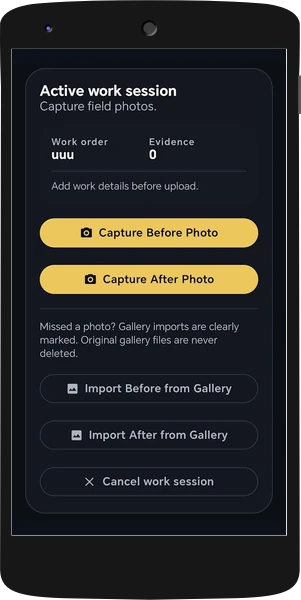
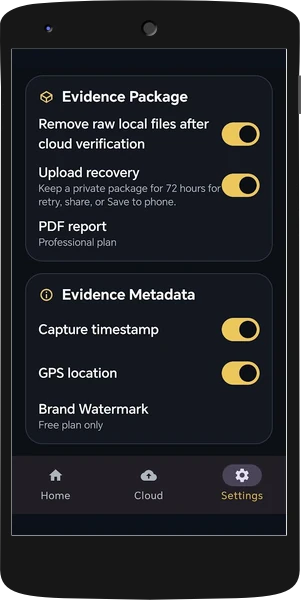
A concise description of the work performed gives reviewers the context for the job.
Photo thumbnails, capture-time information, and recorded locations make the evidence easier to review.
Clickable coordinate links for photos and video open Google Maps at the recorded capture location. They show where the evidence was recorded; they do not independently prove the event.
SHA-256 fingerprints represent the exact bytes of package files. Changing a file changes its fingerprint.
The package contains a manifest, signed media receipt records, and a public signing key. The verifier checks P-256 ECDSA signatures and consistency between those records.
The browser reads the files locally, validates the signed records, and compares the supplied files with the manifest. No customer media is uploaded by the verifier.
An unchanged subset can receive a Verified result while missing signed files are listed as not included. Extra unsigned files and modified files are reported separately.
Verification checks the supplied files against the signed manifest and media records. It identifies changed content, invalid records, and files outside the signature.
Review the file count and missing-file list. A valid subset is not the same as a complete package. Missing required verification records prevent verification.
The signing key travels inside the package. That alone does not independently prove which company or authentic Field Bundle phone created it. Compare the fingerprint through a trusted channel when identity matters.
The supplied verifier does not query an independent server receipt or trusted device registry. It can display capture-time metadata, but that does not independently authenticate the time or the real-world event.
Open a Field Bundle ZIP or folder in the verifier. The verification page makes no network requests.